

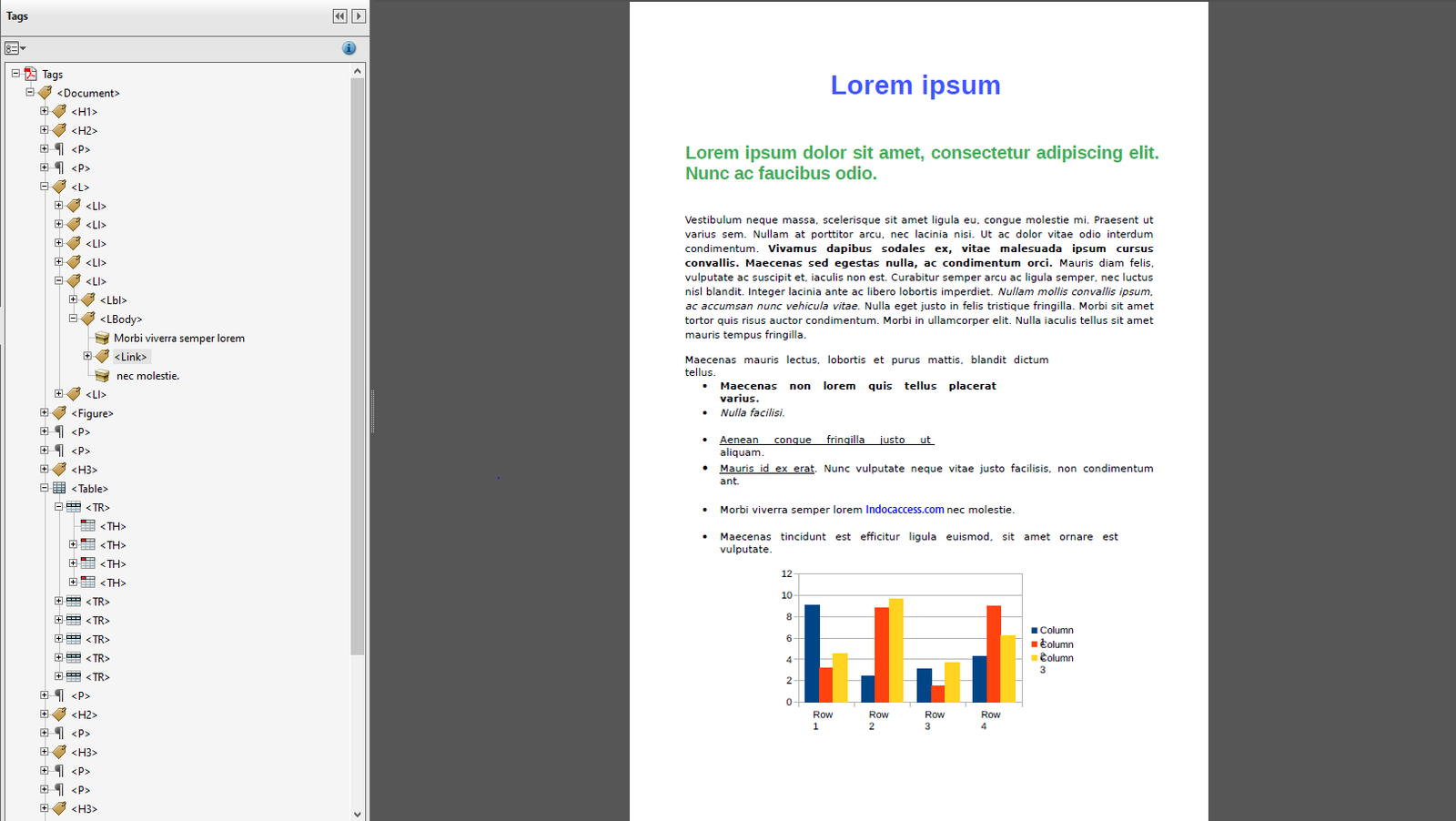
PDF accessibility has improved significantly over the years, yet inaccessible PDFs remain one of the most common digital accessibility failures across businesses, universities, and organizations. Many rely on automated tools, auto-tagging features, or AI-based solutions believing they are “good enough.” In reality, these approaches often create a false sense of compliance.
At InDocAccess, we work exclusively on manual PDF remediation, and one pattern is consistent: auto-tagged PDFs rarely meet real accessibility requirements. This article explains why automated solutions fail, what errors PDF accessibility checkers miss, and why manual remediation is still essential in 2025.
The Appeal of Auto-Tagged PDFs
Most modern authoring tools — including Adobe InDesign, Microsoft Word, and PDF editors — offer auto-tagging or “make accessible” options. Accessibility overlays and AI-based checkers promise fast, low-cost compliance.
The appeal is obvious:
- Faster turnaround
- Lower upfront cost
- Automated accessibility checkers show “passed” results
- Minimal manual effort
However, passing an automated check does not equal accessibility. True accessibility depends on how assistive technologies actually interpret and present content to users.
Why Auto-Tagged PDFs Still Fail Accessibility Compliance
Auto-tagging relies on visual assumptions, not human understanding. It guesses structure based on layout, font size, spacing, and positioning — not meaning.
Here are the most common PDF accessibility errors automation creates or misses:
1. Incorrect Reading Order
Automated tools often misinterpret multi-column layouts, sidebars, footnotes, or call-out boxes. Screen readers may read:
- Headers out of sequence
- Footer content mid-paragraph
- Side content before main content
This makes documents confusing or unusable for screen reader users.
2. Improper Heading Structure
Headings are essential for navigation. Auto-tagging frequently:
- Skips heading levels (H1 → H3)
- Tags visual text as headings without semantic meaning
- Misses headings entirely
This breaks logical document navigation and fails WCAG success criteria.
3. Tables That Are Visually Correct but Semantically Broken
Tables are one of the most common PDF accessibility mistakes.
Automation often:
- Fails to define header cells correctly
- Misses scope or associations
- Breaks complex tables into unreadable sequences
To a screen reader user, such tables are unusable — even if they “look fine.”
4. Inaccurate or Missing Alt Text
AI-generated alt text frequently:
- Describes visual appearance instead of purpose
- Misses contextual meaning
- Adds unnecessary or misleading information
Automated tools cannot judge relevance or intent, which is essential for accessible descriptions.
5. Form Field Errors
Accessible PDF forms require:
- Proper field labels
- Logical tab order
- Clear instructions
- Error identification
Automation often tags fields but fails to:
Provide accessible error feedback
Associate labels correctly
Maintain logical navigation
Errors PDF Accessibility Checkers Miss
Automated accessibility checkers are useful — but limited. They detect technical presence, not usability.
Accessibility checkers usually:
- Confirm tags exist
- Confirm alt text exists
- Confirm color contrast values
But they do not verify:
- Logical reading flow
- Whether headings make sense
- Whether alt text is meaningful
- Whether tables are understandable
- Whether forms are usable with a keyboard
This leads to documents that technically “pass” checks but fail real users.
Can AI Make PDFs Accessible?
AI plays a role in speeding up workflows, but AI cannot replace human judgment.
AI tools cannot:
- Understand document intent
- Interpret complex data relationships
- Make contextual decisions
- Test usability with assistive technology
In 2025, AI is best used as a support tool, not a final solution. Accessibility remains a human-centered discipline, not a fully automated one.
Why Manual PDF Remediation Is Still Necessary in 2026
Manual remediation focuses on how users actually experience documents, not just technical checklists.
At InDocAccess, manual remediation includes:
- Correct logical reading order
- Semantic tagging based on meaning
- Accurate heading hierarchy
- Proper table associations
- Purpose-driven alt text
- Accessible form behavior
- Keyboard and screen reader testing
This approach ensures best-effort accessibility compliance aligned with:
- WCAG 2.1 AA
- PDF/UA
- Section 508
Automation cannot replicate this level of accuracy.Why Accessibility Overlays and Automation Don’t Solve PDF Accessibility
Accessibility overlays are designed for websites — and even there, they have limitations. For PDFs, overlays:
- Do not modify underlying structure
- Do not fix tags, tables, or forms
- Do not make documents accessible offline
- Do not satisfy compliance requirements
Overlays mask problems instead of solving them.
True PDF accessibility requires structural remediation, not surface-level fixes.
Accessibility Errors With Solutions: A Practical View
| Common Error | Automated Result | Manual Solution |
|---|---|---|
| Incorrect reading order | Passes checker | Logical sequencing |
| Missing table headers | Undetected | Proper associations |
| Poor alt text | Auto-generated | Context-aware descriptions |
| Broken forms | Partially tagged | Fully accessible interaction |
| Heading misuse | Technically present | Semantic hierarchy |
This difference defines compliance vs usability.
How to Fix PDF Accessibility Issues the Right Way
Organizations should:
- Use automation only as a starting point
- Conduct manual remediation
- Test with screen readers
- Validate against WCAG and PDF/UA
- Maintain accessibility as an ongoing process
Accessibility is not a one-time checkbox — it’s a quality standard.
Wrapping With: Compliance Is About People, Not Tools
Automated tools are helpful, but accessibility is not purely technical. It’s about ensuring information is usable, understandable, and navigable for everyone.
Auto-tagged PDFs may appear compliant, but they often fail where it matters most — real user experience.
At InDocAccess, we focus on manual PDF remediation because accessibility deserves accuracy, care, and human attention.
If your PDFs rely solely on automation, it’s likely time to reassess — not for compliance alone, but for true accessibility.

Leave a Reply